

I was browsing themes yesterday and thought I would try a new one. What a mistake!
I didn’t realize when I activated a new theme I was not in draft or working with a clone, but I published an updated site. The problem was further exacerbated because I had no idea of the name of my previous theme I thought I could search the themes to find it …but after going through pages of themes I didn’t see it. I thought my only choice was to rebuild my site with the new theme or find another simpler theme and start over. I spent over an hour looking for new themes and messing with them to get something organized. I realized this was going to take all day and I felt really defeated.
As a point of reference: When I want to modify my photography site I can mess around with it in draft mode without publishing the new site until it is ready. I made a very poor assumption that WordPress was the same. It might work different if I paid for the creator package, but I am doing this for myself and don’t want to invest another $300/year.
I did some research on how to look at my history in WordPress. They don’t keep it and I don’t have a plugin that keeps it. Feeling further defeated and irritated I went down the rabbit hole on google to find a solution.
The best solution I found was using the Wayback Machine. This is what I did.
STEP 1: Go to https://archive.org/web/ for the Wayback Machine.
STEP 2: Put your website in the search bar and cross your fingers they have a previous version.

STEP 3: Look at the results.
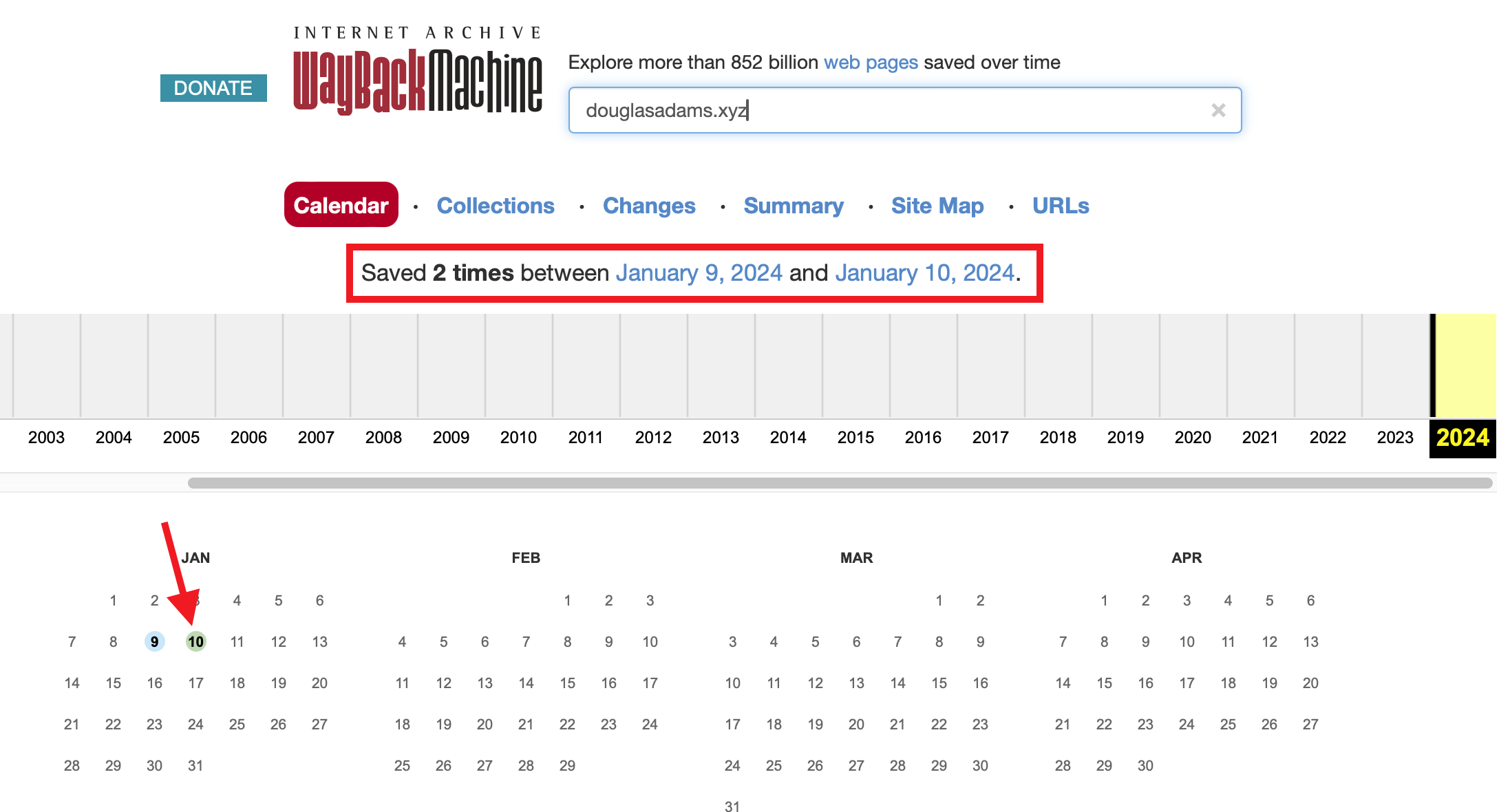
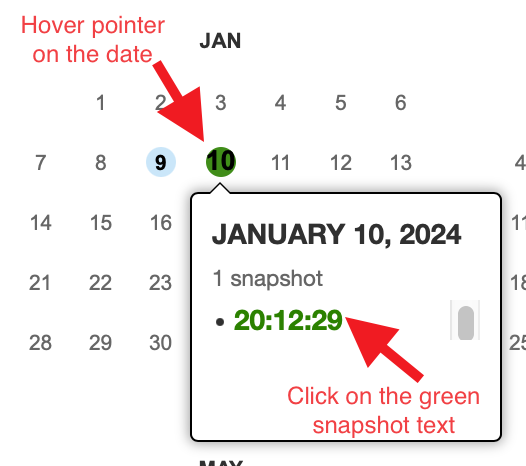
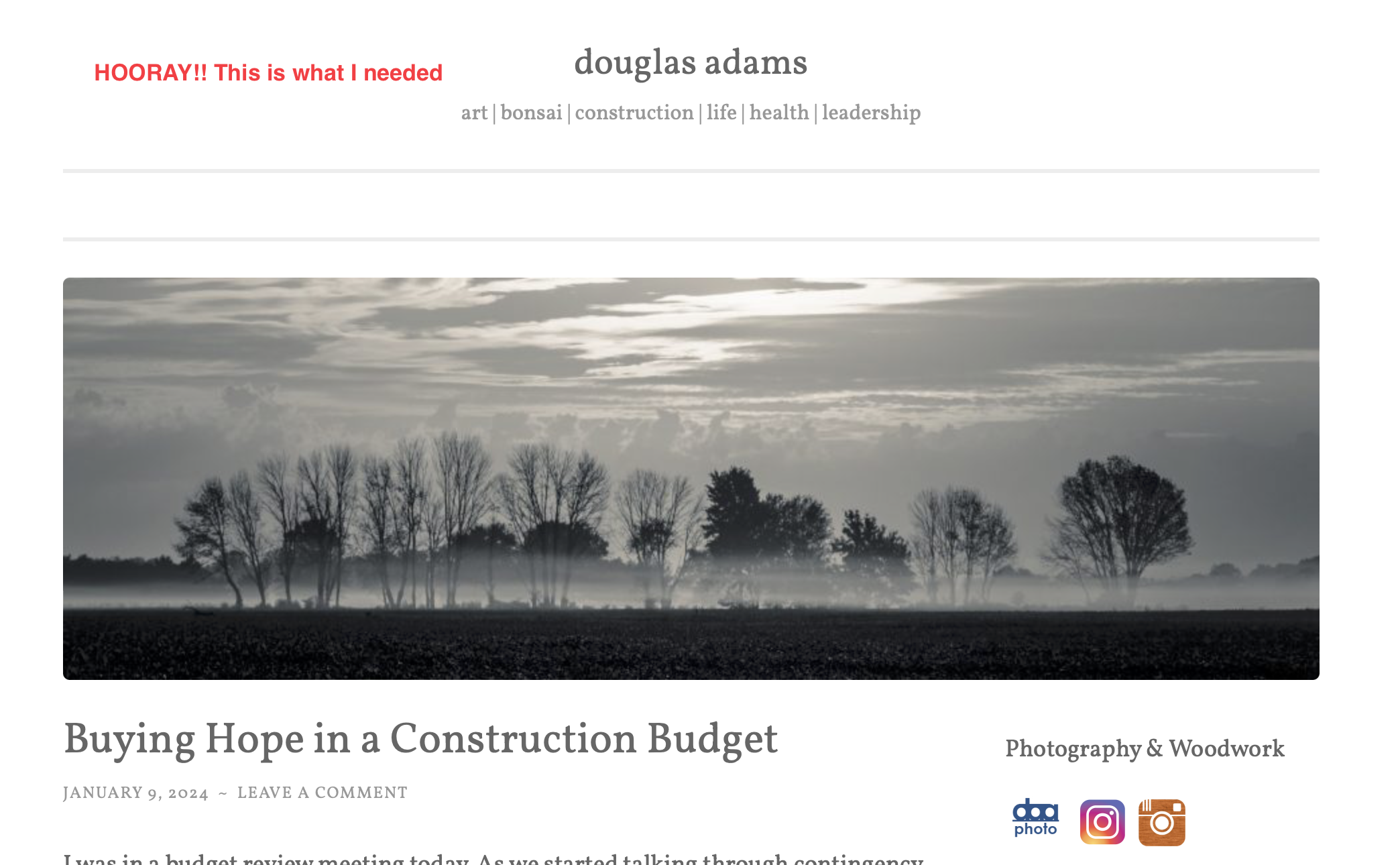
STEP 4: Click on one of the previous versions of the site.
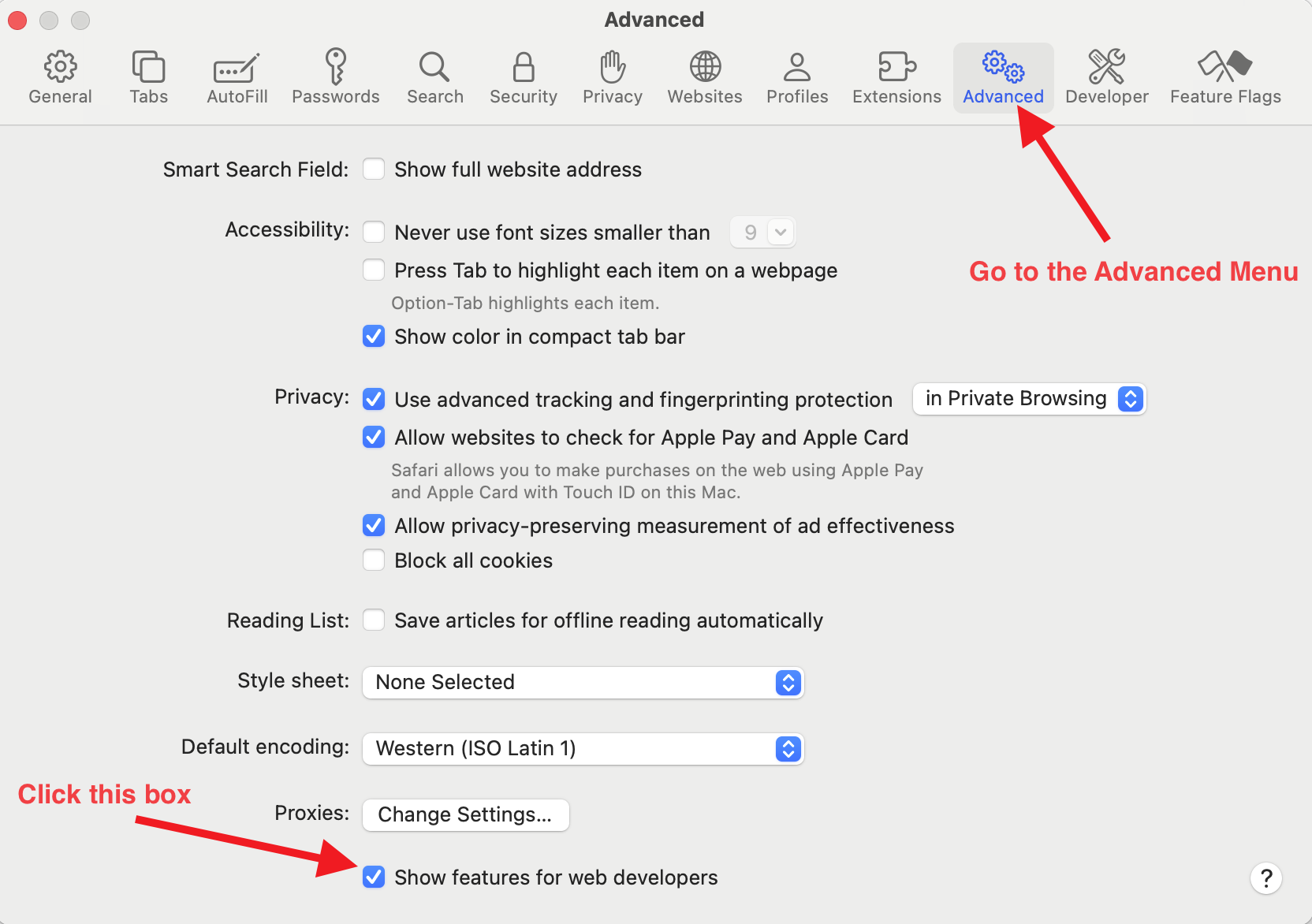
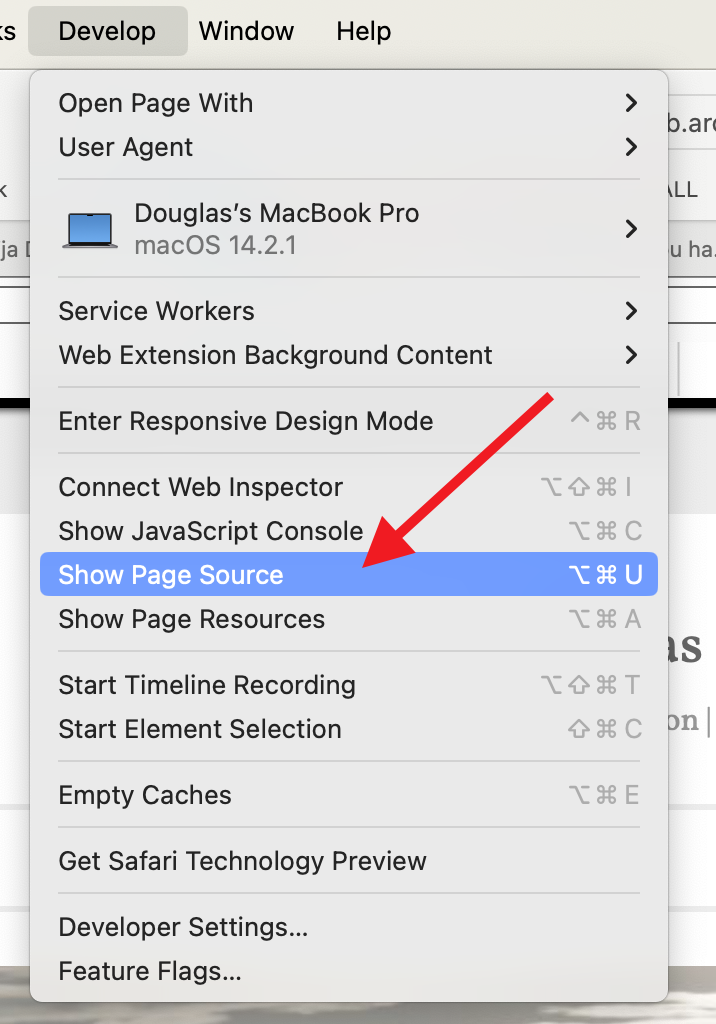
STEP 5: Make sure you have the Develop menu in Safari to look at the page source. If you don’t have this menu Here is how you get it. Most browsers will have a menu option to look at the page source.

STEP 6: Open the page source and find your theme
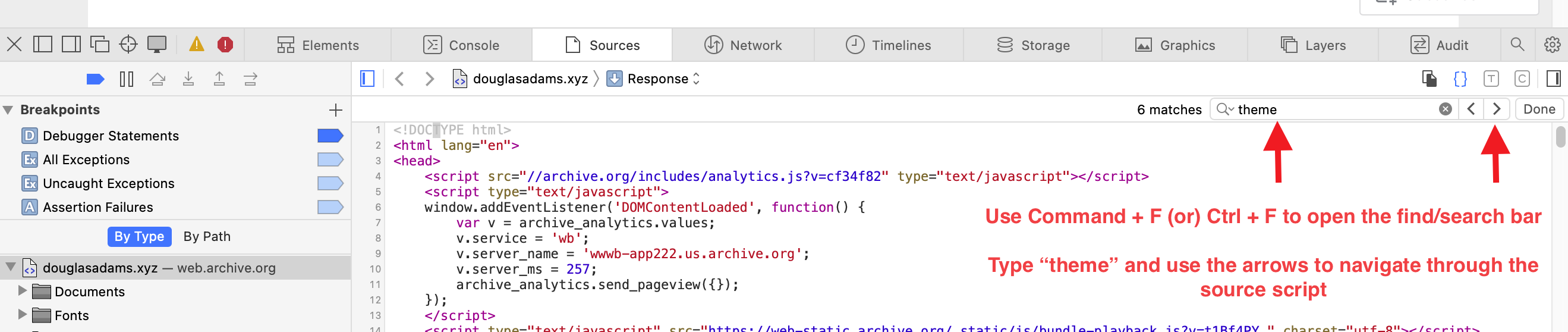

STEP 7: Go back to WordPress and search for your theme and reactivate it.
Fortunately WordPress keeps all your settings with a previous theme you used. Once reactivated my site was back to normal and the crisis averted! I chose to keep this theme and do some updates instead of starting over. I will do a little more research and watch the WordPress tutorials in the future on the best way to implement a new WordPress theme!
STEP 8: Write down the name of your current theme before you activate a new one!
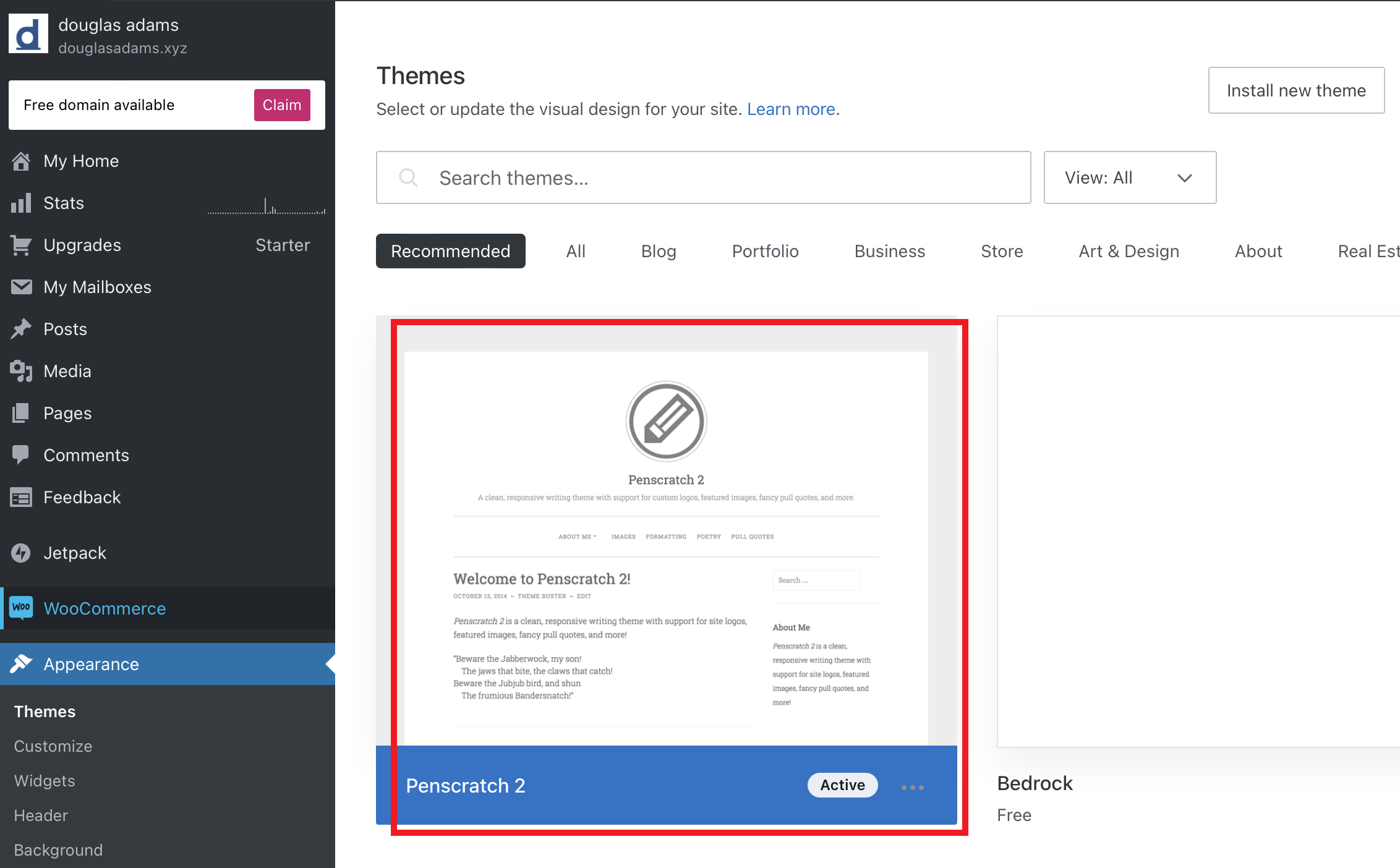
If you don’t know your current theme name you find it in your WordPress settings under appearance. When you go to themes, your current theme is the first listed and it is highlighted as active.
I hope this is helpful to anyone else that has activated a new them and doesn’t know their old theme!

 douglas adams